
As a Power BI developer for many years, I have seen the platform grow significantly. We used to struggle with writing long DAX formulas and building complex data models just to get basic insights. Now, the landscape has completely shifted. The biggest change? The line between data analysis and data science is fading fast.
You no longer need to be a Python expert or know how to code complex algorithms in R to build predictive models. The tools you need are already built right into the Power BI ecosystem. This concept of the “no-code data scientist” is not just a trend. It is changing how businesses make decisions every single day.
In this post, we will explore how you can use Automated Machine Learning (AutoML) and prescriptive modeling directly inside Power Query. We will look at why this matters, how it works, and how you can use these features to deliver incredible value to your organization.
The Rise of No-Code Data Science in Power BI
Historically, if a business wanted to predict future sales or identify customers who might churn, they had to hire a specialized data science team. These experts would extract the data, run it through their models in separate environments, and then hopefully pass the insights back to the analysts. It was a slow, disconnected process.
Microsoft recognized this problem and started bringing data science capabilities directly into Power BI. By putting machine learning tools in the hands of business analysts, they created a new breed of professional: the no-code data scientist.
This approach offers huge benefits. It speeds up the time it takes to get actionable insights. It reduces the reliance on small, overworked data science teams. Most importantly, it keeps the modeling process close to the business context, where the data is actually understood.
Understanding AutoML in Power BI
AutoML, or Automated Machine Learning, is a feature within Power BI Premium and Premium Per User (PPU) workspaces. It simplifies the entire machine learning lifecycle. You do not need to manually select algorithms, tune hyperparameters, or train multiple models to find the best fit. Power BI does the heavy lifting for you.
How AutoML Works
The process is surprisingly straightforward, especially if you are already comfortable with Power BI dataflows.
- Prepare Your Data: Like any good analysis, it starts with clean data. You use Power Query online to connect to your sources, clean the data, and shape it into a single table. This table needs to include the historical data you want to learn from and the specific outcome you want to predict.
- Choose Your Model: Once your dataflow is ready, you can add an AI model. You tell Power BI which column contains the outcome you want to predict. Based on the data type in that column, Power BI suggests the most appropriate type of model.
- Train the Model: Power BI takes over. It samples your data, splits it into training and testing sets, and evaluates dozens of different algorithms. It looks for the one that provides the most accurate predictions.
- Review the Results: After training, Power BI generates a detailed report. This report shows you how accurate the model is and, crucially, which factors have the biggest impact on the prediction. This feature, called feature importance, helps you explain the “why” behind the model.
- Apply the Model: Finally, you can apply this trained model to new data coming into your dataflow. Power BI automatically adds the predictions to your dataset, ready to be visualized in your reports.
Types of Models Available

Currently, AutoML in Power BI supports three main types of predictive models:
- Binary Classification: This is used when you want to predict one of two possible outcomes. For example, will a customer renew their subscription (Yes/No)? Will this loan application default (True/False)?
- Classification: This extends binary classification to predict multiple categories. For instance, what support tier does this customer ticket belong in (High, Medium, Low)?
- Regression: This is used to predict a continuous numerical value. Examples include predicting the total sales for the next quarter or estimating the lifespan of a piece of manufacturing equipment.
Moving Beyond Prediction: Prescriptive Modeling
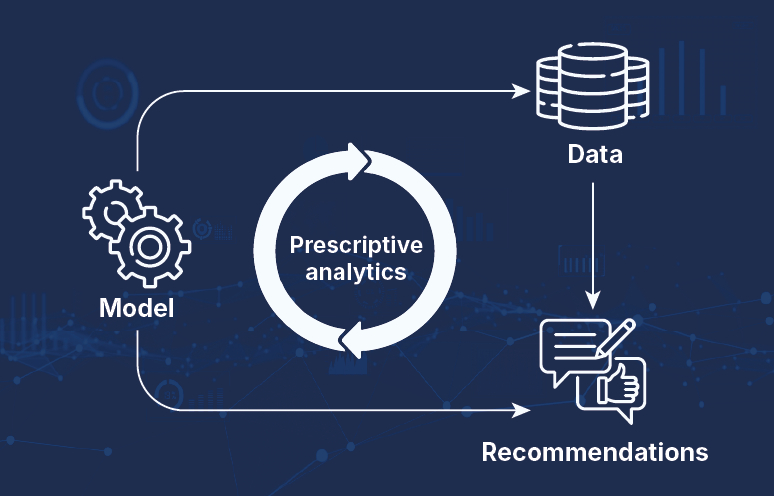
Predicting the future is powerful, but it is only half the battle. Knowing that a customer is likely to leave is helpful, but knowing what to do about it is much better. This is where prescriptive modeling comes in.
Prescriptive analytics takes the outputs from your predictive models and suggests actions you can take to change the outcome. While Power BI does not have a single “prescriptive button,” you can achieve this by combining AutoML with scenario analysis and Power Apps integration.
Scenario Analysis with Parameters
Once you have a working predictive model, you can use “What-If” parameters in Power BI to test different scenarios.
For example, let us say your AutoML model predicts that a customer will churn because their engagement score is too low. You can create a parameter for “Marketing Discount.” By writing a DAX measure that links the parameter to the prediction, you can simulate what happens if you offer that customer a 10% discount.
Does their likelihood of churning decrease? This turns a simple prediction into a prescriptive recommendation: “To save this customer, offer a 10% discount.”
Taking Action with Power Apps
The ultimate goal of prescriptive modeling is to drive action. By embedding a Power App directly inside your Power BI report, you close the loop.
Imagine a dashboard showing the customers with the highest risk of churn. Next to that list is a Power App. When an analyst clicks on a high-risk customer, the app shows the recommended action (like offering a specific discount). The analyst can click a button in the app to immediately send an email with the offer or create a task in the CRM system.
This seamless workflow takes you from data preparation in Power Query, to prediction with AutoML, to prescriptive action via Power Apps—all without writing a single line of Python code.
Key Considerations for Success

While the tools are easier to use than ever, building effective models still requires careful thought. Here are a few things to keep in mind:
Data Quality is Everything
The old saying “garbage in, garbage out” applies perfectly to machine learning. AutoML cannot fix bad data. You must spend the time in Power Query to handle missing values, remove outliers, and ensure your data accurately reflects reality before you train a model. The quality of your historical data directly dictates the accuracy of your future predictions.
Understand the Business Problem
Do not just build a model because you can. Start with a clear business question. What specific decision are you trying to improve? How will the predictions be used? Aligning your model with a clear business goal ensures that the insights you generate are actually valuable.
Communicate the Results Clearly
A highly accurate model is useless if nobody trusts it. You must be able to explain how the model works and what factors are driving its predictions. Use the feature importance reports provided by AutoML to build trust with your stakeholders. Explain the “why” behind the numbers in plain language.
Leveling Up Your Skills

The transition from a traditional reporting analyst to a no-code data scientist requires a shift in mindset. You are no longer just looking at what happened in the past; you are actively shaping the future.
If you are looking to accelerate your journey and master these advanced capabilities, structured learning can make a huge difference. For those serious about mastering the platform, I highly recommend checking out a comprehensive Power BI Course. A good course will take you beyond the basics of DAX and visualization, diving deep into data modeling, Power Query transformations, and advanced analytics techniques.
Conclusion
The era of the no-code data scientist is here, and Power BI is leading the charge. By leveraging AutoML and combining it with the broader Power Platform ecosystem, you can build powerful predictive and prescriptive models entirely within the tools you already know.
This shift empowers business users to drive more value, make better decisions, and solve complex problems faster than ever before. So, open up Power Query, explore your data, and start predicting the future today. The tools are ready when you are.